Tuesday, August 16, 2011

PARts Of MicRoSoft Word 2007 ScEEn

Excel 2007
Parts of the Excel 2007 Screen

Parts of the Excel 2007 Screen

Related Articles:
Parts of the Excel 2003 Screen
Parts of the Excel 2010 Screen

Active Cell
In an Excel 2007 worksheet, the cell with the black outline. Data is always entered into the active cell.
Column Letter
Columns run vertically on a worksheet and each one is identified by a letter in the column header.
Formula Bar
Located above the worksheet, this area displays the contents of the active cell. It can also be used for entering or editing data and formulas.
Name Box
Located next to the formula bar, the Name Box displays the cell reference or the name of the active cell.
Row Number
Rows run horizontally in an Excel 2007 worksheet and are identified by a number in the row header.
Sheet Tab
Switching between worksheets in an Excel 2007 file is done by clicking on the sheet tab at the bottom of the screen.

Quick Access Toolbar
This customizable toolbar allows you to add frequently used commands. Click on the down arrow at the end of the toolbar to display the tool bar's options.
Office Button
Clicking on the Office Button displays a drop down menu containing a number of options, such as open, save, and print. The options in the Office Button menu are very similar to those found under the File menu in previous versions of Excel.
Ribbon
The Ribbon is the strip of buttons and icons located above the work area in Excel 2007. The Ribbon replaces the menus and toolbars found in earlier versions of Excel.
 Text Area
The text area is the part where data is being typed
Title Bar
the title of your document


    • CTRL+C (Copy)
    • CTRL+X (Cut)
    • CTRL+V (Paste)
    • CTRL+Z (Undo)
    • DELETE (Delete)
    • SHIFT+DELETE (Delete the selected item permanently without placing the item in the Recycle Bin)
    • CTRL while dragging an item (Copy the selected item)
    • CTRL+SHIFT while dragging an item (Create a shortcut to the selected item)
    • F2 key (Rename the selected item)
    • CTRL+RIGHT ARROW (Move the insertion point to the beginning of the next word)
    • CTRL+LEFT ARROW (Move the insertion point to the beginning of the previous word)
    • CTRL+DOWN ARROW (Move the insertion point to the beginning of the next paragraph)
    • CTRL+UP ARROW (Move the insertion point to the beginning of the previous paragraph)
    • CTRL+SHIFT with any of the arrow keys (Highlight a block of text)
    • SHIFT with any of the arrow keys (Select more than one item in a window or on the desktop, or select text in a document)
    • CTRL+A (Select all)
    • F3 key (Search for a file or a folder)
    • ALT+ENTER (View the properties for the selected item)
    • ALT+F4 (Close the active item, or quit the active program)
    • ALT+ENTER (Display the properties of the selected object)
    • ALT+SPACEBAR (Open the shortcut menu for the active window)
    • CTRL+F4 (Close the active document in programs that enable you to have multiple documents open simultaneously)
    • ALT+TAB (Switch between the open items)
    • ALT+ESC (Cycle through items in the order that they had been opened)
    • F6 key (Cycle through the screen elements in a window or on the desktop)
    • F4 key (Display the Address bar list in My Computer or Windows Explorer)
    • SHIFT+F10 (Display the shortcut menu for the selected item)
    • ALT+SPACEBAR (Display the System menu for the active window)
    • CTRL+ESC (Display the Start menu)
    • ALT+Underlined letter in a menu name (Display the corresponding menu)
    • Underlined letter in a command name on an open menu (Perform the corresponding command)
    • F10 key (Activate the menu bar in the active program)
    • RIGHT ARROW (Open the next menu to the right, or open a submenu)
    • LEFT ARROW (Open the next menu to the left, or close a submenu)
    • F5 key (Update the active window)
    • BACKSPACE (View the folder one level up in My Computer or Windows Explorer)
    • ESC (Cancel the current task)
    • SHIFT when you insert a CD-ROM into the CD-ROM drive (Prevent the CD-ROM from automatically playing)
    • CTRL+SHIFT+ESC (Open Task Manager)

Dialog box keyboard shortcuts

If you press SHIFT+F8 in extended selection list boxes, you enable extended selection mode. In this mode, you can use an arrow key to move a cursor without changing the selection. You can press CTRL+SPACEBAR or SHIFT+SPACEBAR to adjust the selection. To cancel extended selection mode, press SHIFT+F8 again. Extended selection mode cancels itself when you move the focus to another control.
  • CTRL+TAB (Move forward through the tabs)
  • CTRL+SHIFT+TAB (Move backward through the tabs)
  • TAB (Move forward through the options)
  • SHIFT+TAB (Move backward through the options)
  • ALT+Underlined letter (Perform the corresponding command or select the corresponding option)
  • ENTER (Perform the command for the active option or button)
  • SPACEBAR (Select or clear the check box if the active option is a check box)
  • Arrow keys (Select a button if the active option is a group of option buttons)
  • F1 key (Display Help)
  • F4 key (Display the items in the active list)
  • BACKSPACE (Open a folder one level up if a folder is selected in the Save As or Open dialog box)

Microsoft natural keyboard shortcuts

  • Windows Logo (Display or hide the Start menu)
  • Windows Logo+BREAK (Display the System Properties dialog box)
  • Windows Logo+D (Display the desktop)
  • Windows Logo+M (Minimize all of the windows)
  • Windows Logo+SHIFT+M (Restore the minimized windows)
  • Windows Logo+E (Open My Computer)
  • Windows Logo+F (Search for a file or a folder)
  • CTRL+Windows Logo+F (Search for computers)
  • Windows Logo+F1 (Display Windows Help)
  • Windows Logo+ L (Lock the keyboard)
  • Windows Logo+R (Open the Run dialog box)
  • Windows Logo+U (Open Utility Manager)

Accessibility keyboard shortcuts

  • Right SHIFT for eight seconds (Switch FilterKeys either on or off)
  • Left ALT+left SHIFT+PRINT SCREEN (Switch High Contrast either on or off)
  • Left ALT+left SHIFT+NUM LOCK (Switch the MouseKeys either on or off)
  • SHIFT five times (Switch the StickyKeys either on or off)
  • NUM LOCK for five seconds (Switch the ToggleKeys either on or off)
  • Windows Logo +U (Open Utility Manager)

Windows Explorer keyboard shortcuts

  • END (Display the bottom of the active window)
  • HOME (Display the top of the active window)
  • NUM LOCK+Asterisk sign (*) (Display all of the subfolders that are under the selected folder)
  • NUM LOCK+Plus sign (+) (Display the contents of the selected folder)
  • NUM LOCK+Minus sign (-) (Collapse the selected folder)
  • LEFT ARROW (Collapse the current selection if it is expanded, or select the parent folder)
  • RIGHT ARROW (Display the current selection if it is collapsed, or select the first subfolder)

Shortcut keys for Character Map

After you double-click a character on the grid of characters, you can move through the grid by using the keyboard shortcuts:
  • RIGHT ARROW (Move to the right or to the beginning of the next line)
  • LEFT ARROW (Move to the left or to the end of the previous line)
  • UP ARROW (Move up one row)
  • DOWN ARROW (Move down one row)
  • PAGE UP (Move up one screen at a time)
  • PAGE DOWN (Move down one screen at a time)
  • HOME (Move to the beginning of the line)
  • END (Move to the end of the line)
  • CTRL+HOME (Move to the first character)
  • CTRL+END (Move to the last character)
  • SPACEBAR (Switch between Enlarged and Normal mode when a character is selected)

Microsoft Management Console (MMC) main window keyboard shortcuts

  • CTRL+O (Open a saved console)
  • CTRL+N (Open a new console)
  • CTRL+S (Save the open console)
  • CTRL+M (Add or remove a console item)
  • CTRL+W (Open a new window)
  • F5 key (Update the content of all console windows)
  • ALT+SPACEBAR (Display the MMC window menu)
  • ALT+F4 (Close the console)
  • ALT+A (Display the Action menu)
  • ALT+V (Display the View menu)
  • ALT+F (Display the File menu)
  • ALT+O (Display the Favorites menu)

MMC console window keyboard shortcuts

  • CTRL+P (Print the current page or active pane)
  • ALT+Minus sign (-) (Display the window menu for the active console window)
  • SHIFT+F10 (Display the Action shortcut menu for the selected item)
  • F1 key (Open the Help topic, if any, for the selected item)
  • F5 key (Update the content of all console windows)
  • CTRL+F10 (Maximize the active console window)
  • CTRL+F5 (Restore the active console window)
  • ALT+ENTER (Display the Properties dialog box, if any, for the selected item)
  • F2 key (Rename the selected item)
  • CTRL+F4 (Close the active console window. When a console has only one console window, this shortcut closes the console)

Remote desktop connection navigation

  • CTRL+ALT+END (Open the Microsoft Windows NT Security dialog box)
  • ALT+PAGE UP (Switch between programs from left to right)
  • ALT+PAGE DOWN (Switch between programs from right to left)
  • ALT+INSERT (Cycle through the programs in most recently used order)
  • ALT+HOME (Display the Start menu)
  • CTRL+ALT+BREAK (Switch the client computer between a window and a full screen)
  • ALT+DELETE (Display the Windows menu)
  • CTRL+ALT+Minus sign (-) (Place a snapshot of the entire client window area on the Terminal server clipboard and provide the same functionality as pressing ALT+PRINT SCREEN on a local computer.)
  • CTRL+ALT+Plus sign (+) (Place a snapshot of the active window in the client on the Terminal server clipboard and provide the same functionality as pressing PRINT SCREEN on a local computer.)

Microsoft Internet Explorer navigation

  • CTRL+B (Open the Organize Favorites dialog box)
  • CTRL+E (Open the Search bar)
  • CTRL+F (Start the Find utility)
  • CTRL+H (Open the History bar)
  • CTRL+I (Open the Favorites bar)
  • CTRL+L (Open the Open dialog box)
  • CTRL+N (Start another instance of the browser with the same Web address)
  • CTRL+O (Open the Open dialog box, the same as CTRL+L)
  • CTRL+P (Open the Print dialog box)
  • CTRL+R (Update the current Web page)
  • CTRL+W (Close the current window)

Other information

  • Some keyboard shortcuts may not work if StickyKeys is turned on in Accessibility Options.
  • Some of the Terminal Services client shortcuts that are similar to the shortcuts in Remote Desktop Sharing are not available when you use Remote Assistance in Windows XP Home Edition.
  • Some of the other Microsoft Knowledge Base articles that have similar information as this article are:
    126449  Keyboard shortcuts for Windows
    255090  Keystroke navigation in Windows 2000 Help
  • Refer to Help for the most current information regarding keyboard navigation and visit the following Microsoft Accessibility Web site for additional information that relates to keyboard shortcuts and keyboard navigation in Windows and other Microsoft products:

APPLIES TO
Keywords: 


Yes
No
Maybe


Other Resources

Other Support Sites

Community

Get Help Now

Article Translations

Related Support Centers


Sunday, July 31, 2011

Typing


Typing is the process of inputting text into a device, such as a typewritercell phonecomputer, or a calculator, by pressing keys on akeyboard. It can be distinguished from other means of input, such as the use of pointing devices like the computer mouse, and text input viaspeech recognition.
The world's first typist was Lillian Sholes from Wisconsin.She was the daughter of Christopher Sholes, the man who invented the first practical typewriter
User interface features such as spell checkerautocomplete, and autoreplace serve to facilitate and speed up typing and to prevent or correct errors the typist may make.
A computer keyboard is divided into sections according to function type. The alphanumeric and typing keys function in much the same way as a typewriter. The numeric keypad works like a traditional adding machine so you can enter numbers quickly. The control keys, used either alone or in combination with other keys, perform specific actions. The function keys each perform a specific program task. The navigation keys move your cursor around a document or Web page.
HOmE KEys
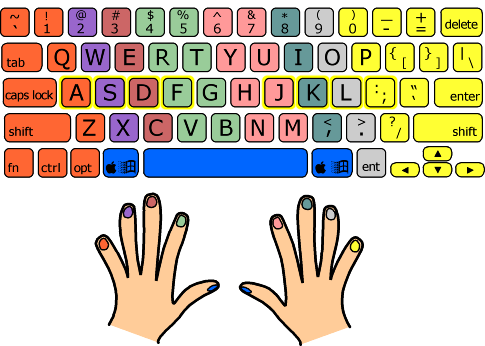
  • Each finger rests on a particular key in the home row of the keyboard when not typing, in order to keep "grounded" and oriented at all times. The home keys (ASDF JKL; ) are outlined in yellow on the above diagram. The thumbs remain in the air, or very gently in contact with the keys below.
  • Each finger is responsible for a vertical column of keys, which you can think of as a "home column". The column is not straight up and down, but rather slopes up to the left.
  • Both index fingers are responsible for an additional column, the one next to their home columns towards the middle of the keyboard.
  • The thumbs are used for the space bar, and depending on the shape of your keyboard can also be used for the "command" (Apple computers) or "Windows" (PCs) key.
  • The left-hand pinky is also responsible for all the keys to the left of its home column, including the left shift key, caps lock, tab, tilde, escape and others.
  • The right-hand pinky is a real workhorse, covering everything to the right of its home column. Take a look - there's a lot of stuff there! 
  • typing is real fun!!!

SoftWAreS

SOtWAREs   aRE,,,,

Computer instructions or data. Anything that can be stored electronically is software. The storage devices and display devices are hardware.
The terms software and hardware are used as both nouns and adjectives. For example, you can say: "The problem lies in the software," meaning that there is a problem with the program or data, not with the computer itself. You can also say: "It's a software problem."
The distinction between software and hardware is sometimes confusing because they are so integrally linked. Clearly, when you purchase a program, you are buying software. But to buy the software, you need to buy the disk(hardware) on which the software is recorded.
Software is often divided into two categories:

  • systems software : Includes the operating system and all theutilities that enable the computer to function.

  • applications software : Includes programs that do real work forusers. For example, word processorsspreadsheets, and database management systems fall under the category of applications software.System software is computer software designed to operate the computer hardware and to provide a platform for running application software.[1][2]
    The most basic types of system software are:
    In some publications, the term system software is also used to designate software development tools (like a compilerlinker or debugger).[3]
    In contrast to system software, software that allows users to do things like create text documents, play games, listen to music, or surf the web is called application software.[4]

    [edit]

    What is Application Software?
    Application software utilizes the capacities of a computer directly to a dedicated task. Application software is able to manipulate text, numbers and graphics. It can be in the form of software focused on a certain single task like word processing, spreadsheet or playing of audio and video files.

    Different Types of Application Software

    Word Processing Software: This software enables the users to create and edit documents. The most popular examples of this type of software are MS-Word, WordPad, Notepad and some other text editors.

    Database Software: Database is a structured collection of data. A computer database relies on database software to organize the data and enable the database users to achieve database operations. Database software allows the users to store and retrieve data from databases. Examples are Oracle, MSAccess, etc.

    Spreadsheet Software: Excel, Lotus 1-2-3 and Apple Numbers are some examples of spreadsheet software. Spreadsheet software allows users to perform calculations. They simulate paper worksheets by displaying multiple cells that make up a grid.

    Multimedia Software: They allow the users to create and play audio and video media. They are capable of playing media files. Audio converters, players, burners, video encoders and decoders are some forms of multimedia software. Examples of this type of software include Real Player and Media Player.

    Presentation Software: The software that is used to display information in the form of a slide show is known as presentation software. This type of software includes three functions, namely, editing that allows insertion and formatting of text, methods to include graphics in the text and a functionality of executing the slide shows. Microsoft PowerPoint is the best example of presentation software.

    Examples of Application Software

    Enterprise Software: It deals with the needs of organization processes and data flow. The customer relationship management or the financial processes in an organization are carried out by means of enterprise software.

    Information Worker Software: Individual projects within a department and individual needs of creation and management of information are handled by information worker software. Documentation tools, resource management tools and personal management systems fall under the category of this form of application software.

    Educational Software: It has the capabilities of running tests and tracking progress. It also has the capabilities of collaborative software. It is often used in teaching and self-learning.

    Simulation Software: Used to simulate physical or abstract systems, simulation software finds applications in both, research and entertainment. Flight simulators and scientific simulators find a place in the list of simulation software.

    Content Access Software: It is used to access content without editing. The common examples of content access software are web browsers and media players.

    Thus we see that application software have made it possible for us users to interact with the computer systems. Application software has served as a boon in harnessing the computing power in the accomplishment of certain important individual and organizational tasks.


  • HiSToRy Of cOMpuTeRS

          Where do you think the history of computers begin?


    One of the earliest machines designed to assist people in calculations was the abacus which is still being used some 5000 years after its invention.
    In 1642 Blaise Pascal (a famous French mathematician) invented an adding machine based on mechanical gears in which numbers were represented by the cogs on the wheels.
    Englishman, Charles Babbage, invented in the 1830's a "Difference Engine" made out of brass and pewter rods and gears, and also designed a further device which he called an "Analytical Engine". His design contained the five key characteristics of modern computers:-
    1. An input device
    2. Storage for numbers waiting to be processed
    3. A processor or number calculator
    4. A unit to control the task and the sequence of its calculations
    5. An output device
    Augusta Ada Byron (later Countess of Lovelace) was an associate of Babbage who has become known as the first computer programmer.
    An American, Herman Hollerith, developed (around 1890) the first electrically driven device. It utilised punched cards and metal rods which passed through the holes to close an electrical circuit and thus cause a counter to advance. This machine was able to complete the calculation of the 1890 U.S. census in 6 weeks compared with 7 1/2 years for the 1880 census which was manually counted.
    In 1936 Howard Aiken of Harvard University convinced Thomas Watson of IBM to invest $1 million in the development of an electromechanical version of Babbage's analytical engine. The Harvard Mark 1 was completed in 1944 and was 8 feet high and 55 feet long.
    At about the same time (the late 1930's) John Atanasoff of Iowa State University and his assistant Clifford Berry built the first digital computer that worked electronically, the ABC (Atanasoff-Berry Computer). This machine was basically a small calculator.
    In 1943, as part of the British war effort, a series of vacuum tube based computers (named Colossus) were developed to crack German secret codes. The Colossus Mark 2 series (pictured) consisted of 2400 vacuum tubes.
    Colossus Mark 2               (photo in public domain - copyright expired)
    John Mauchly and J. Presper Eckert of the University of Pennsylvania developed these ideas further by proposing a huge machine consisting of 18,000 vacuum tubes. ENIAC (Electronic Numerical Integrator And Computer) was born in 1946. It was a huge machine with a huge power requirement and two major disadvantages. Maintenance was extremely difficult as the tubes broke down regularly and had to be replaced, and also there was a big problem with overheating. The most important limitation, however, was that every time a new task needed to be performed the machine need to be rewired. In other words programming was carried out with a soldering iron.
    In the late 1940's John von Neumann (at the time a special consultant to the ENIAC team) developed the EDVAC (Electronic Discrete Variable Automatic Computer) which pioneered the "stored program concept". This allowed programs to be read into the computer and so gave birth to the age of general-purpose computers.
    Tubes from a 1950s comupter      (source - http://en.wikipedia.org/wiki/File:Ibm-tube.jpg)

    The Generations of Computers

    It used to be quite popular to refer to computers as belonging to one of several "generations" of computer. These generations are:-
    The First Generation (1943-1958): This generation is often described as starting with the delivery of the first commercial computer to a business client. This happened in 1951 with the delivery of the UNIVAC to the US Bureau of the Census. This generation lasted until about the end of the 1950's (although some stayed in operation much longer than that). The main defining feature of the first generation of computers was that vacuum tubes were used as internal computer components. Vacuum tubes are generally about 5-10 centimeters in length and the large numbers of them required in computers resulted in huge and extremely expensive machines that often broke down (as tubes failed).
    The Second Generation (1959-1964): In the mid-1950's Bell Labs developed the transistor. Transistors were capable of performing many of the same tasks as vacuum tubes but were only a fraction of the size. The first transistor-based computer was produced in 1959. Transistors were not only smaller, enabling computer size to be reduced, but they were faster, more reliable and consumed less electricity.
    The other main improvement of this period was the development of computer languages.Assembler languages or symbolic languages allowed programmers to specify instructions in words (albeit very cryptic words) which were then translated into a form that the machines could understand (typically series of 0's and 1's: Binary code). Higher level languages also came into being during this period. Whereas assembler languages had a one-to-one correspondence between their symbols and actual machine functions, higher level language commands often represent complex sequences of machine codes. Two higher-level languages developed during this period (Fortran and Cobol) are still in use today though in a much more developed form.
    The Third Generation (1965-1970): In 1965 the first integrated circuit (IC) was developed in which a complete circuit of hundreds of components were able to be placed on a single silicon chip 2 or 3 mm square. Computers using these IC's soon replaced transistor based machines. Again, one of the major advantages was size, with computers becoming more powerful and at the same time much smaller and cheaper. Computers thus became accessible to a much larger audience. An added advantage of smaller size is that electrical signals have much shorter distances to travel and so the speed of computers increased.
    Another feature of this period is that computer software became much more powerful and flexible and for the first time more than one program could share the computer's resources at the same time (multi-tasking). The majority of programming languages used today are often referred to as 3GL's (3rd generation languages) even though some of them originated during the 2nd generation.
    The Fourth Generation (1971-present): The boundary between the third and fourth generations is not very clear-cut at all. Most of the developments since the mid 1960's can be seen as part of a continuum of gradual miniaturisation. In 1970 large-scale integration was achieved where the equivalent of thousands of integrated circuits were crammed onto a single silicon chip. This development again increased computer performance (especially reliability and speed) whilst reducing computer size and cost. Around this time the first complete general-purpose microprocessor became available on a single chip. In 1975 Very Large Scale Integration (VLSI) took the process one step further. Complete computer central processors could now be built into one chip. The microcomputer was born. Such chips are far more powerful than ENIAC and are only about 1cm square whilst ENIAC filled a large building.
    During this period Fourth Generation Languages (4GL's) have come into existence. Such languages are a step further removed from the computer hardware in that they use language much like natural language. Many database languages can be described as 4GL's. They are generally much easier to learn than are 3GL's.
    The Fifth Generation (the future): The "fifth generation" of computers were defined by the Japanese government in 1980 when they unveiled an optimistic ten-year plan to produce the next generation of computers. This was an interesting plan for two reasons. Firstly, it is not at all really clear what the fourth generation is, or even whether the third generation had finished yet. Secondly, it was an attempt to define a generation of computers before they had come into existence. The main requirements of the 5G machines was that they incorporate the features ofArtificial Intelligence, Expert Systems, and Natural Language. The goal was to produce machines that are capable of performing tasks in similar ways to humans, are capable of learning, and are capable of interacting with humans in natural language and preferably using both speech input (speech recognition) and speech output (speech synthesis). Such goals are obviously of interest to linguists and speech scientists as natural language and speech processing are key components of the definition. As you may have guessed, this goal has not yet been fully realised, although significant progress has been made towards various aspects of these goals.

    Parallel Computing

    Up until recently most computers were serial computers. Such computers had a single processor chip containing a single processor. Parallel computing is based on the idea that if more than one task can be processed simultaneously on multiple processors then a program would be able to run more rapidly than it could on a single processor. The supercomputers of the 1990s, such as the Cray computers, were extremely expensive to purchase (usually over $1,000,000) and often required cooling by liquid helium so they were also very expensive to run. Clusters of networked computers (eg. a Beowulf culster of PCs running Linux) have been, since 1994, a much cheaper solution to the problem of fast processing of complex computing tasks. By 2008, most new desktop and laptop computers contained more than one processor on a single chip (eg. the Intel "Core 2 Duo" released in 2006 or the Intel "Core 2 Quad" released in 2007). Having multiple processors does not necessarily mean that parallel computing will work automatically. The operating system must be able to distribute programs between the processors (eg. recent versions of Microsoft Windows and Mac OS X can do this). An individual program will only be able to take advantage of multiple processors if the computer language it's written in is able to distribute tasks within a program between multiple processors. For example, OpenMP supports parallel programming in Fortran and C/C++.
    Besides, the computers before are getting smaller and smaller......

    Tuesday, June 28, 2011

    This Is Me

          This is me this is real,I'm exactly where I'm supposed to be now,.,.gonna let the light,,,, shine on me, now I found who I am, there's no way to hold it in,, no more hiding who I wanna be.,.,,, THIS IS ME.
         
          i AM jAYBERT c. fRANCISCO, my hobbies at home and school are drawing cartoon characters, playing badminton and volleyball and writing short poems and stories.

          I am proud of my family because they love me.I do it carefully to make it done successfully.
          THIS IS THE TRUE ME AND I AM PROUD OF BEING ME,MYSELF AND I.......